
Your screen. Ready to watch.
Set up your device
Which device would you like to use? Tap Guide for steps, or Open for the web player.
Install the ZeroCableTV app on Fire OS, or use Silk on Vega devices.
Android Box (STB)
Use an M3U-compatible player on your Android set-top box. We use M3U only for now. Prefer it over Xtream when both options appear.
- 1
Install a player
Install TiviMate, IPTV Smarters, or GSE from a source you trust (Play Store or sideload, depending on your box).
- 2
Copy your M3U
Sign in on your phone or PC, then Show / Copy your Zero Cable playlist URL from Account → Apps.
- 3
Add playlist
In the player: Add playlist → M3U URL / Remote → paste your link. Prefer M3U over Xtream.
- 4
Load & watch
Wait for channels to load. One stream per account.
Android TV
Android TV plays Zero Cable through an M3U player such as TiviMate or IPTV Smarters.
- 1
Install a player
Install TiviMate or IPTV Smarters from the Play Store when available, or from a source you trust.
- 2
Copy your M3U
Sign in on your phone or PC, then Show / Copy from Account → Apps.
- 3
Add as M3U URL
Add playlist → Remote / M3U URL → paste. Prefer M3U over Xtream.
- 4
Watch
Open the Zero Cable playlist and pick a channel.
Android Mobile
Use the Zero Cable Home Screen app, or any M3U player with your playlist.
- 1
Option A: Home Screen
Chrome → zerocabletv.com/watch → ⋮ → Install app / Add to Home screen. Sign in with your Zero Cable email. Use Chrome, not Instagram or Gmail’s in-app browser.
- 2
Option B: M3U player
Install TiviMate or IPTV Smarters, then paste your M3U after signing in. Prefer M3U over Xtream.
- 3
Sign in or paste
Home Screen uses your Zero Cable account; external players use the M3U URL only.
Apple TV / iOS
iPhone/iPad: Home Screen app or an M3U app (GSE / Flex). Apple TV: Screen Mirroring or an M3U app when available.
- 1
iPhone / iPad: Home Screen
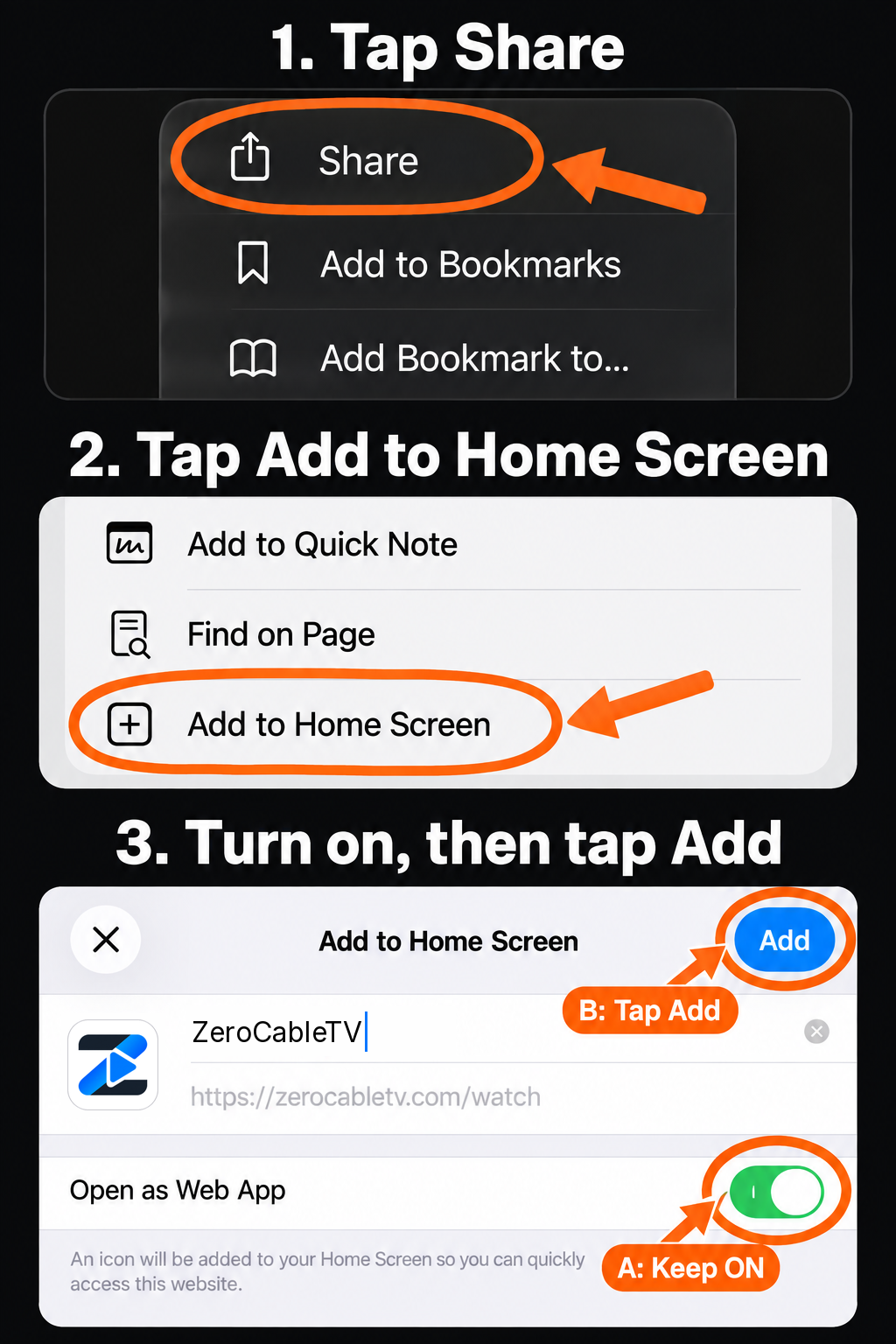
Safari → zerocabletv.com/watch → Share → Add to Home Screen. Keep the name Zero Cable. Turn on Open as Web App if shown. Sign in with your Zero Cable email.
- 2
M3U on iOS: GSE or Flex
Install GSE Smart IPTV or Flex IPTV from the App Store. Add playlist as M3U URL after you sign in to copy your link.
- 3
Apple TV
Prefer Screen Mirroring from iPhone, or install Flex / GSE on Apple TV if available and paste the same M3U.
Smart TV / Tizen / webOS
We use M3U only for now (MAG portal comes later). Prefer the TV browser, an M3U app on the set, or a Firestick on HDMI.
- 1
Browser (easiest)
Open the TV browser and go to zerocabletv.com/watch. Sign in with your Zero Cable account.
- 2
Or install an IPTV app
From the TV app store if your model offers an M3U-capable player.
- 3
Paste M3U on the TV
Sign in on your phone to copy the URL, then enter it on the TV as an M3U / URL playlist.
- 4
No M3U app?
Use a Firestick or Android box on HDMI. See the Firestick guide.
Fire TV Stick / Fire TV
Choose your stick's software firstOn the Fire TV, open Settings → My Fire TV → About and read Software Version. A Fire OS stick can install our Android APK pilot. A Vega OS stick cannot run an APK; use the browser while our Vega app awaits Amazon release.
Fire OS 6 or newer — install the ZeroCableTV APK pilot
This is for Fire OS sticks, including the 2024 Fire TV Stick HD and Fire TV Stick 4K / 4K Max models. The pilot has Live TV, Movies and Series; use the website for Short Dramas. It has not yet been tested on your physical stick.
- 1
Install Downloader
On your Fire TV, search the Amazon Appstore for “Downloader by AFTVnews” and install it.
- 2
Allow APK installation
In Settings → My Fire TV → Developer Options → Install unknown apps, allow Downloader. If Developer Options is hidden, open About and select the device name seven times, then return to My Fire TV.
- 3
Download our APK
In Downloader, enter 9846472 and press Go. Check that the destination is zerocabletv.com/tv.apk, then choose Install. Backup address: https://zerocabletv.com/tv.apk.
- 4
Open and sign in
Find ZeroCableTV under Apps, open it and follow the on-screen code to activate it with your ZeroCableTV account.
If Downloader is missing from Install unknown apps or the installation fails, check for Fire TV updates. Amazon also documents installing an APK from a computer with Android Debug Bridge (ADB). Contact support if you need help; keep your current setup until the pilot works on your stick.
Vega OS — Fire TV Stick 4K Select or 2026 Stick HD
These sticks run Vega OS, so the Android APK will not install. To watch now, open Apps → Internet (Amazon Silk), go to https://zerocabletv.com/live and sign in. Bookmark the site in Silk for quick access. Please check live, movie and short-drama playback on your own stick. The native Vega app requires an Amazon Developer account for device installation and is not yet in the Appstore.
Fire OS 5 or an older unsupported stick
Our APK requires Android API 23 or newer, so Fire OS 5 devices cannot install this pilot. Try Apps → Internet (Amazon Silk) and open https://zerocabletv.com/live, or continue using your current player.
When the official app reaches the Amazon Appstore
Search the Appstore for ZeroCableTV, choose Get, open it and sign in. We will add the direct store link here after approval.
Using an existing M3U player until launch?
Your current player can continue to use your ZeroCableTV playlist. Open Account → Apps & Guides → Fire TV to copy your M3U link, then paste it into the player you already use. A paid third-party app is not required for the upcoming ZeroCableTV app.
Roku TV / Streaming Stick
Watch on Roku with iPhone screen mirroringCompatible Roku devices support Apple AirPlay. A dedicated ZeroCableTV Roku app is not in the Roku Streaming Store yet, and Roku cannot install the Fire TV APK.
- 1
Check Roku AirPlay
On Roku, open Settings → System → About to check your model and software. If Apple AirPlay and HomeKit appears in Settings, open it and make sure AirPlay is On.
- 2
Connect both devices
Put your iPhone or iPad and Roku on the same Wi-Fi network.
- 3
Open ZeroCableTV
In Safari on your iPhone or iPad, visit zerocabletv.com and sign in. Select the live channel, movie, series or short drama you want to watch.
- 4
Mirror to Roku
Open iPhone Control Center → Screen Mirroring → select your Roku. Enter the code shown on your TV if asked, then return to Safari and play. Control playback from your iPhone.
AirPlay availability depends on the Roku model and software. If your Roku has no Apple AirPlay and HomeKit setting, use another supported device from this guide while a native Roku app is developed.
Formuler / MyTVOnline 2
Add Zero Cable in MyTVOnline 2 as an M3U playlist URL.
- 1
Open MyTVOnline 2
Launch MyTVOnline 2 on your Formuler box.
- 2
Add playlist
Choose Add / New playlist and select M3U playlist or URL (not Xtream).
- 3
Paste M3U
Sign in to Show / Copy your Zero Cable link, then paste it.
- 4
Refresh
Save and load channels. One stream per account.
Xbox Series X|S
Watch in Microsoft Edge on your Xbox. No APK or extra player is needed.
- 1
Open Microsoft Edge
From Xbox Home, open My games & apps → See all → Apps → Microsoft Edge.
- 2
Open ZeroCableTV and sign in
Enter zerocabletv.com in the address bar, then sign in with your ZeroCableTV account.
- 3
Choose something to watch
Use the controller cursor and A to select. For larger controls, open Profile & Settings and turn on TV Mode. Choose a channel or title, then enter full screen.
PlayStation 5
PS5 has no ZeroCableTV app or dedicated web browser. To watch on the same TV, use a supported streaming device or a computer connected by HDMI.
- 1
Connect a supported device
Plug a Fire TV Stick, Android TV device, or computer into a free HDMI port on your TV.
- 2
Switch the TV input
Use your TV remote to select that device’s HDMI input. Your PS5 setup stays the same.
- 3
Set up ZeroCableTV
Follow the Fire TV guide below, or open zerocabletv.com in the connected computer’s browser and sign in.
Tesla
In-car browser / Theater. Tesla uses the Zero Cable web player in the car's browser, the same as Web Player. No M3U link or player app needed.
- 1
Park
Park your Tesla. Video only plays while the car is in Park.
- 2
Get connected
Make sure the car is on Wi-Fi or has Premium Connectivity.
- 3
Open Browser
Tap the app launcher on the touchscreen and open Browser.
- 4
Go to Zero Cable
Go to zerocabletv.com.
- 5
Log in
Log in with your Zero Cable account.
- 6
Watch
Pick your profile and start watching Live, Series, Dramas, or Movies.
Tip: bookmark zerocabletv.com in the Tesla browser so it's one tap next time.
Polestar & Volvo
In-car browser (Vivaldi or Chrome). Polestar and Volvo cars with Google built-in use the Zero Cable web player in an in-car browser, the same as Web Player. No M3U link or player app needed.
- 1
Park
Park your car. The browser only works while parked, and video switches to audio only once you start driving.
- 2
Get connected
Make sure the car is online (built-in connectivity or Wi-Fi) and signed in to your Google account.
- 3
Install a browser
Open Google Play on the center display, search for Vivaldi Browser and tap Install. Google Chrome also works where Google Play offers it. Works on Polestar 2, 3 and 4 and Volvo models with Google built-in.
- 4
Open the browser
Open Vivaldi (or Chrome) from the app launcher.
- 5
Go to Zero Cable
Go to zerocabletv.com.
- 6
Log in
Log in with your Zero Cable account.
- 7
Watch
Pick your profile and start watching Live, Series, Dramas, or Movies.
Tip: add zerocabletv.com as a Speed Dial in Vivaldi (or a bookmark in Chrome) so it's one tap next time.
Ford & Lincoln
In-car browser (Vivaldi). Ford and Lincoln vehicles with the Digital Experience use the Zero Cable web player in the Vivaldi browser, the same as Web Player. No M3U link or player app needed.
- 1
Park
Park your vehicle. Vivaldi only works while parked, and video switches to audio only once you start driving.
- 2
Get connected
Make sure the vehicle is online with its connected services plan or Wi-Fi so apps can download.
- 3
Install Vivaldi
Open Google Play on the center screen, search for Vivaldi Browser and tap Install. Works on models with Ford or Lincoln Digital Experience, such as the 2025 Ford Explorer, Lincoln Nautilus and 2025 Lincoln Aviator.
- 4
Open Vivaldi
Open Vivaldi from the apps screen.
- 5
Go to Zero Cable
Go to zerocabletv.com.
- 6
Log in
Log in with your Zero Cable account.
- 7
Watch
Pick your profile and start watching Live, Series, Dramas, or Movies.
Tip: add zerocabletv.com as a Speed Dial in Vivaldi so it's one tap next time.
Mercedes-Benz
In-car browser (Vivaldi). Mercedes-Benz models with the latest MBUX and third-party apps use the Zero Cable web player in the Vivaldi browser, the same as Web Player. No M3U link or player app needed.
- 1
Park
Park your car. Video on the central display is for when you're parked.
- 2
Get connected
Make sure the car is online and you're signed in with your Mercedes me ID.
- 3
Get Vivaldi
Open Vivaldi from the MBUX apps menu. If it isn't there, install it from the in-car Mercedes-Benz app store. Available on models such as the E-Class and CLE.
- 4
Open Vivaldi
Open Vivaldi on the central display or the passenger screen.
- 5
Go to Zero Cable
Go to zerocabletv.com.
- 6
Log in
Log in with your Zero Cable account.
- 7
Watch
Pick your profile and start watching Live, Series, Dramas, or Movies.
Tip: add zerocabletv.com as a Speed Dial in Vivaldi so it's one tap next time.
Audi
In-car browser (Vivaldi). Newer Audi models with the Audi Application Store use the Zero Cable web player in the Vivaldi browser, the same as Web Player. No M3U link or player app needed.
- 1
Park
Park your car. The browser is for when you're parked. A passenger display, if fitted, can keep playing.
- 2
Get connected
Make sure the car's data connection is active so apps can download.
- 3
Install Vivaldi
Open the Audi Application Store in the MMI, search for Vivaldi and tap Install. Available on models such as the Q6 e-tron. Apps vary by model and market.
- 4
Open Vivaldi
Open Vivaldi from the MMI home screen.
- 5
Go to Zero Cable
Go to zerocabletv.com.
- 6
Log in
Log in with your Zero Cable account.
- 7
Watch
Pick your profile and start watching Live, Series, Dramas, or Movies.
Tip: add zerocabletv.com as a Speed Dial in Vivaldi so it's one tap next time.
Renault
In-car browser (Vivaldi). Renault cars with OpenR Link have the Vivaldi browser built in and use the Zero Cable web player, the same as Web Player. No M3U link or player app needed.
- 1
Park
Park your car. Watch only while stationary, for example while charging.
- 2
Get connected
Make sure the car has an active data connection.
- 3
Open Vivaldi
Open Vivaldi from the OpenR Link apps menu. It comes built in on models such as the Megane E-Tech, Scenic E-Tech, Austral, Rafale and Renault 5. If it's missing, install Vivaldi Browser from Google Play.
- 4
Go to Zero Cable
Go to zerocabletv.com.
- 5
Log in
Log in with your Zero Cable account.
- 6
Watch
Pick your profile and start watching Live, Series, Dramas, or Movies.
Tip: add zerocabletv.com as a Speed Dial in Vivaldi so it's one tap next time.
Emby
Add Zero Cable as an M3U Live TV tuner on your Emby server. Open the server dashboard in a browser (often http://localhost:8096/web/).
- 1
Live TV → TV Sources
In Emby Dashboard, go to Live TV and click + next to TV Sources.
- 2
Type: M3U Tuner
Set Type to M3U Tuner. Under File or URL, paste your Zero Cable M3U after signing in to copy it.
- 3
Optional: EPG
If your playlist includes EPG, the player may pick it up automatically; otherwise skip EPG for now.
- 4
Refresh
Save the source, then refresh guide data if you added EPG. Watch Live TV from an Emby client.
Kodi
Use the built-in PVR IPTV Simple Client with your Zero Cable M3U. No third-party repo required.
- 1
Allow unknown sources (if needed)
Settings → System → Add-ons → Unknown sources → Enable. Reboot Kodi or the device if prompted.
- 2
Install PVR IPTV Simple Client
Add-ons → Install from repository → PVR clients → PVR IPTV Simple Client → Install.
- 3
Configure M3U
Open the client settings. Set M3U playlist URL location to Remote path, then paste your Zero Cable M3U after signing in to copy it.
- 4
Enable & reload
Enable the client, then reload the skin or restart Kodi. Open TV → Channels. If your playlist includes EPG, the player may pick it up automatically; otherwise skip EPG for now.
Flex IPTV
Flex IPTV works on Apple TV, iPhone, and iPad. Add Zero Cable as a remote M3U playlist.
- 1
Install Flex IPTV
Search “Flex IPTV” in the App Store and install it.
- 2
Open Settings
Once installed, open Flex and go to Settings.
- 3
Add playlist: Remote
Choose Add playlist → Remote.
- 4
Paste M3U
Paste your Zero Cable M3U after signing in to copy it. Prefer M3U over Xtream.
- 5
Optional: EPG
If your playlist includes EPG, the player may pick it up automatically; otherwise skip EPG for now.
GSE / IPTV Smarters
Prefer M3U URL over Xtream Codes when both options exist. Works well on Apple devices (GSE) and Android (Smarters / GSE).
- 1
Open the app
Launch GSE Smart IPTV or IPTV Smarters.
- 2
Add M3U URL
Tap + → Add M3U URL (not Xtream).
- 3
Name & paste
Playlist name: “Zero Cable”. Paste your M3U after signing in to copy it. Double-check the link.
- 4
Add & wait
Tap Add. Wait a few seconds to a minute while the playlist downloads and parses, then play a channel.
TiviMate
Recommended for Firestick and Android TV, especially Live TV. Prefer M3U over Xtream.
- 1
Install TiviMate
On Firestick, use Downloader with a trusted tip such as https://troypoint.com/tivi, or install TiviMate from a source you trust. On Android TV / box, use Play Store when available.
- 2
Add playlist
Open TiviMate and select Add playlist.
- 3
Enter URL
Choose Enter URL, then paste your Zero Cable M3U after signing in to copy it.
- 4
Name it Zero Cable
Tap Next. Name the playlist “Zero Cable” (optional) and continue.
- 5
Live vs Movies / Series
Live TV works best in TiviMate. For Movies and Series with posters, use Zero Cable on the web or the Home Screen app.
- 6
Optional: EPG
If your playlist includes EPG, the player may pick it up automatically; otherwise skip EPG for now.